















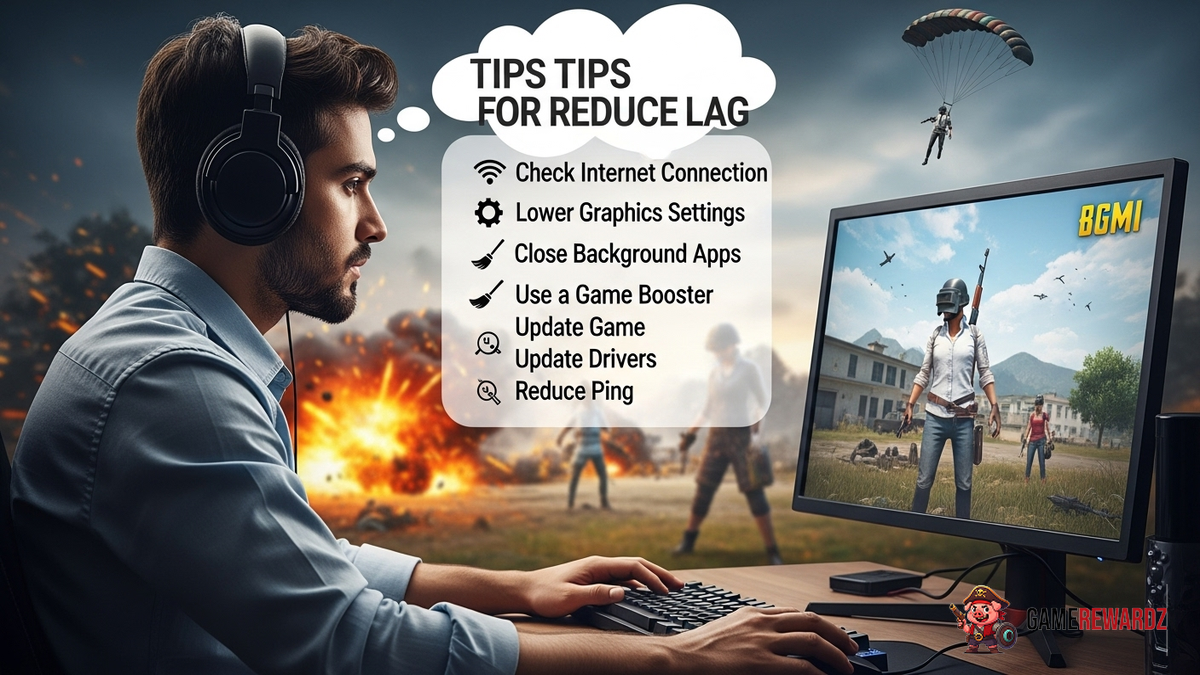
Okay, let's talk about lag. Specifically, BGMI lag. We've all been there, right? You're lining up the perfect headshot, adrenaline pumping, and then... freeze. You're rubberbanding across the map while your squadmates are already looting the next building. Infuriating, isn't it? You might be wondering, why does this happen and, more importantly, what can we do about it?
See, the thing with mobile gaming, especially a resource-intensive beast like BGMI, is that it's a delicate dance of hardware, software, and network conditions. One wrong step, and bam – lag city. But don't despair! I've spent way too much time troubleshooting this myself, and I'm here to share the hard-earned wisdom. Think of this as your survival guide to smoother gameplay.
Understanding the Culprits Behind BGMI Lag
Before we dive into the fixes, let's identify the usual suspects. This isn't just about randomly tweaking settings; it's about understanding what's actually causing the problem. Makes sense, right?
- Your Internet Connection: This is the big one. A shaky Wi-Fi signal or a congested mobile network can wreak havoc on your ping.
- Your Device's Hardware: Older phones or tablets might struggle to keep up with BGMI's demands, leading to frame drops and stuttering.
- In-Game Settings: Cranking up the graphics settings too high can put a strain on your device, resulting in lag.
- Background Apps: Apps running in the background can consume valuable resources and bandwidth, impacting your game performance.
- Server Issues: Sometimes, the problem isn't you; it's the BGMI servers themselves. Server issues happen, actually there is a website where you can find a lot of games to play at any time, if the BGMI servers are done! Check Crazy Games!
Simple Tweaks for Smoother BGMI Gameplay
Alright, let's get our hands dirty. I initially thought the solution involved complex configurations, but after diving deep, I realized that often, the simplest tweaks are the most effective.
- Optimize Your Network:
- Use a Stable Wi-Fi Connection: If possible, connect to a Wi-Fi network with a strong and stable signal. Avoid public Wi-Fi networks, as they're often crowded and unreliable.
- Close Background Apps: Before launching BGMI, close any apps running in the background. These apps can consume bandwidth and processing power, contributing to lag.
- Use a Game Booster: Game boosters are optimization apps that can help reduce lag and improve performance.
- Adjust In-Game Settings:
- Lower Graphics Settings: Reduce the graphics quality to "Smooth" or "Balanced." This will reduce the strain on your device and improve frame rates.
- Disable Shadows: Shadows can be resource-intensive. Disabling them can provide a noticeable performance boost.
- Reduce Frame Rate: Try reducing the frame rate to "Medium" or "Low." This can also help improve performance on lower-end devices.
- Optimize Your Device:
- Update Your Device's Software: Make sure your device is running the latest version of its operating system. Updates often include performance improvements and bug fixes.
- Clear Cache and Data: Periodically clear the cache and data for BGMI. This can help resolve performance issues and free up storage space.
- Restart Your Device: A simple restart can often resolve temporary performance issues.
And, by the way, if you're looking for some cool limited avatar customizations for your roblox games, check here.
Advanced Techniques for Reducing Lag
Okay, let's say you've tried the simple tweaks, and you're still experiencing lag. Don't give up hope! There are a few more advanced techniques you can try. These might require a little more technical know-how, but they can make a significant difference.
- Use a VPN: A VPN (Virtual Private Network) can sometimes help improve your connection to the BGMI servers by routing your traffic through a different server. However, be aware that using a VPN may violate BGMI's terms of service, so use it at your own risk.
- Root Your Device (Advanced): Rooting your Android device gives you more control over your system and allows you to install custom ROMs and kernels that can improve performance. However, rooting your device can void your warranty and may brick your device if not done correctly. This is really an advanced option.
- Experiment with GFX Tools: GFX tools are third-party apps that allow you to further customize BGMI's graphics settings. They can be useful for optimizing performance on specific devices. But proceed with caution!
Troubleshooting Common Lag Problems
Even with all these tweaks, you might still encounter specific lag-related issues. Let's tackle some of the most common ones:
- Rubberbanding: This is when your character jumps back and forth erratically. It's usually caused by a unstable internet connection.
- Freezing: This is when the game completely freezes for a few seconds. It can be caused by hardware limitations or software glitches.
- Frame Drops: This is when the frame rate drops suddenly, making the game feel choppy and unresponsive. It's often caused by high graphics settings or background apps.
FAQ: Tackling BGMI Lag Head-On
How do I know if my internet connection is the reason I'm lagging in BGMI?
That's a great question! Here's the deal: a simple speed test isn't enough. While a good download/upload speed is crucial, you also need to monitor your ping (latency) and packet loss. A consistently high ping (above 100ms) or noticeable packet loss will directly translate to lag in BGMI. Try running a ping test specifically to BGMI's servers (if you can find their IP address) or use a general online ping test tool while you're playing. If your ping spikes or you see packet loss, your internet is likely the culprit.
Why does my BGMI game lag even though I have a high-end phone?
It's frustrating, I know. Just because you have a powerful phone doesn't guarantee a lag-free BGMI experience. Think of it like a sports car stuck in rush hour traffic. Your phone might have the processing power, but other factors are still at play. First, ensure BGMI has enough RAM allocated to it (close background apps!). Second, even high-end phones can overheat, which severely throttles performance. Make sure your phone isn't getting too hot while playing. And lastly, double-check those in-game graphics settings! Even on a powerful phone, maxed-out settings can cause lag if they're pushing the hardware too hard.
How often should I clear my BGMI cache to prevent lag?
There's no magic number, but a good rule of thumb is to clear your BGMI cache every week or two, especially if you're experiencing performance issues. Clearing the cache removes temporary files that can become corrupted or bloated over time, potentially causing lag. It's a quick and easy maintenance step that can often make a noticeable difference.
Is using a game booster app actually helpful for reducing lag in BGMI?
Game boosters can be helpful, but it's important to manage expectations. These apps work by closing background processes, freeing up RAM, and sometimes optimizing network settings. In theory, this should improve performance. However, some game boosters are more effective than others, and some may even be scams or contain malware. Do your research and choose a reputable game booster app with positive reviews. Also, remember that a game booster is a band-aid solution; it won't magically transform a low-end device into a gaming powerhouse.
Ultimately, reducing lag in BGMI is about understanding the factors that contribute to it and taking steps to optimize your device, network, and in-game settings. It's a process of trial and error, but with a little patience and persistence, you can enjoy smoother, more immersive gameplay. And that, my friends, is worth the effort. If you want to improve your performance, you can improve you arsenal with the best weapon skins!









![Peggle [FLASH] Game](https://gamerewardz.com/thumbs/peggle-flash-game_2.webp)