
























Let's be real, are you tired of your Fortnite Mobile game looking like a slideshow instead of the epic battle royale it's supposed to be? I know I was. The constant lag, the dropped frames – it's enough to make you chuck your phone across the room (please don't!). But before you resort to drastic measures, let’s talk about squeezing every last drop of performance out of your device. Because honestly, who wants to be the player lagging behind when the Victory Royale is on the line?
Fortnite on mobile... it's a tricky beast. It's amazing that we can even play such a graphically intense game on a phone, but that comes at a price. Performance. Gaming portals are fun but we have to get the mobile version running smoothly. The good news is, there are tweaks you can make – some simple, some a bit more involved – to dramatically improve your experience. Think of it as giving your phone a much-needed tune-up.
Understanding the Culprits Behind Lag
First, let's diagnose the problem. Why is your Fortnite Mobile game chugging along like a rusty old engine? Usually, it boils down to a few key suspects:
- Your Device's Specs: This is the obvious one. Older phones simply don't have the horsepower to run Fortnite at its highest settings. But even newer phones can struggle if they're not optimized.
- Internet Connection: A shaky Wi-Fi signal or a congested network can cause serious lag. Think of it like trying to run a marathon with a backpack full of bricks. Not fun.
- Background Apps: All those apps running in the background? They're stealing precious processing power and RAM that Fortnite desperately needs. Close 'em down!
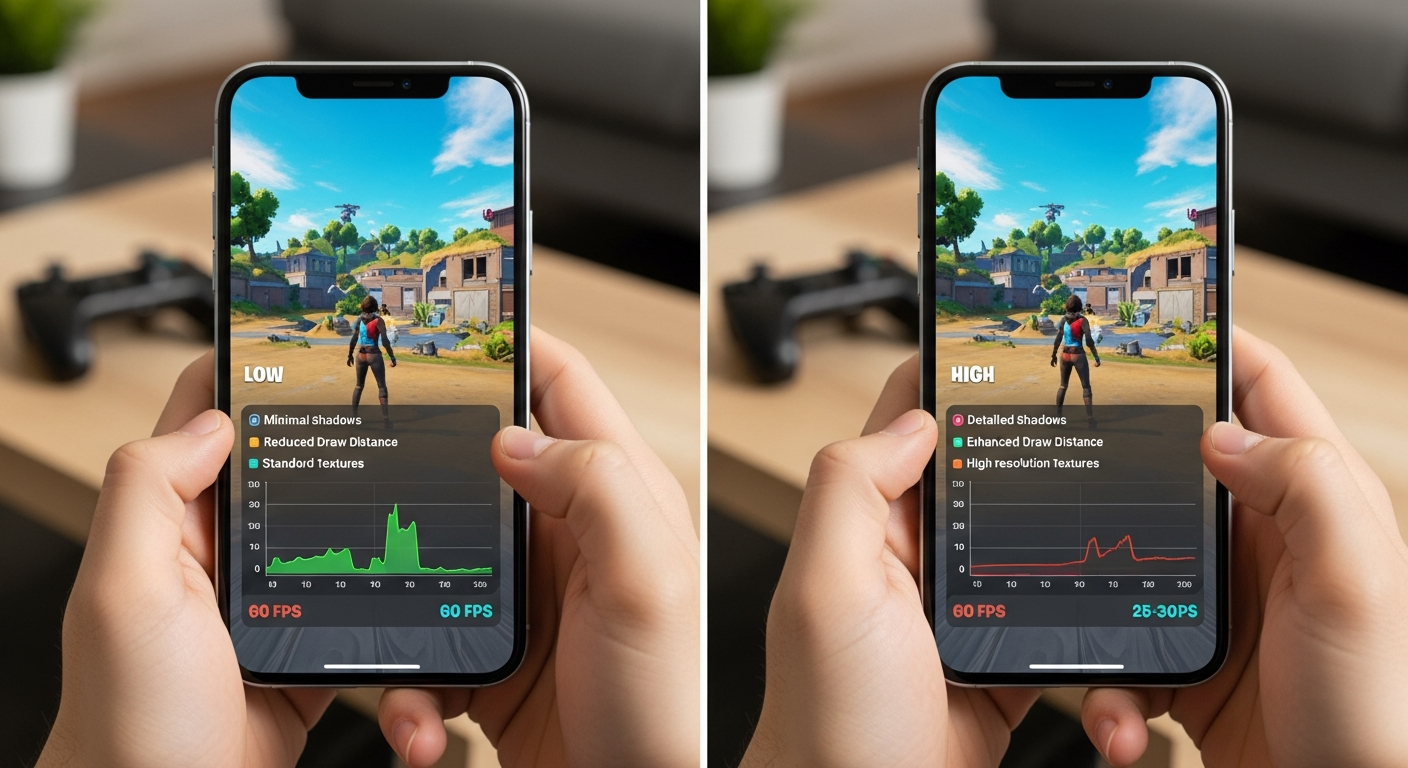
- Graphics Settings: Cranked up the graphics to "Epic"? Yeah, that's probably the problem. Lowering them can make a world of difference.
- Overheating: Phones get hot, especially when running demanding games. And when they get too hot, they throttle performance to prevent damage.
Actually, that's not quite right... there's something even more interesting here. It's not just one of these things, it's often a combination. Maybe your phone is a bit older and you're trying to play on a crowded Wi-Fi network while streaming music. Recipe for disaster, right?
Simple Tweaks for Immediate Gains
Okay, so you know the potential problems. What can you actually do about it? Here are some quick wins that require minimal effort:
- Close Background Apps: Seriously, do it. Every single time before you launch Fortnite.
- Lower Graphics Settings: Head into the Fortnite settings and experiment with different graphics presets. Start with "Low" and gradually increase them until you find a balance between visual quality and performance.
- Play on a Stable Wi-Fi Network: Avoid public Wi-Fi hotspots if possible. They're often overcrowded and unreliable. A strong, dedicated home network is ideal.
- Update Your Device's Software: Make sure you're running the latest version of your phone's operating system. These updates often include performance improvements and bug fixes.
- Restart Your Device Regularly: It sounds basic, but a simple restart can clear out temporary files and processes that are bogging down your system.
But here's the thing: sometimes, the simple tweaks aren't enough. You need to dig a little deeper.
Advanced Optimization Techniques
Ready to get your hands dirty? These advanced techniques might require a bit more effort, but they can yield significant results:
- Game Booster Apps: These apps claim to optimize your device specifically for gaming. Some are effective, others are snake oil. Do your research before downloading one.
- Developer Options: Android users can unlock hidden settings in the "Developer Options" menu. Be careful here! Messing with the wrong settings can cause problems. But there are some tweaks that can improve performance, like disabling hardware overlays.
- Custom ROMs: This is for advanced users only! Flashing a custom ROM can significantly improve performance, but it's also risky and can void your warranty. Do plenty of research before attempting this.
- Cooling Solutions: If your phone is constantly overheating, consider investing in a cooling pad or a phone cooler. These can help dissipate heat and prevent performance throttling.
I initially thought that game booster apps were useless, but after looking deeper, some of them actually do work by freeing up RAM and killing unnecessary processes. Still, be cautious and read reviews.
Network Considerations for Smooth Gameplay
Don't underestimate the importance of a good network connection. You might have the most powerful phone in the world, but if your internet is garbage, you're going to lag. Period.
- Wired Connection (if possible): If you're playing at home, consider using a wired Ethernet connection with an adapter. Wi-Fi is convenient, but wired is always more stable.
- Prioritize Your Traffic: Some routers allow you to prioritize certain types of traffic, like gaming. This can ensure that Fortnite gets the bandwidth it needs.
- Upgrade Your Router: If you're using an old, outdated router, it might be time for an upgrade. A newer router with better technology can significantly improve your network performance.
- Check Your Ping: High ping (latency) can cause noticeable lag. Use a ping test website or app to check your ping to Fortnite servers. If it's consistently high, you might need to contact your internet service provider.
And think about this: are other people in your house streaming movies or downloading large files while you're trying to play? That's going to impact your connection too. Tell them to stop! (Just kidding... mostly.)
FAQ: Fortnite Mobile Performance Boost
How do I know if my phone is good enough to run Fortnite Mobile smoothly?
That's the million-dollar question, isn't it? Start by checking the official Fortnite Mobile system requirements. If your phone meets the minimum specs, you should be able to play, but don't expect amazing performance. If it meets the recommended specs, you'll have a much better experience. But even then, optimization is key. Also, consider your phone's age. Even if it met the specs when it was new, performance can degrade over time.
Why does my Fortnite Mobile game lag even though I have a good internet connection?
Frustrating, right? It could be a few things. First, double-check that your internet connection is actually stable. Run a speed test and look for consistent results. Also, consider the server region you're playing on. Playing on a server that's geographically far away can increase ping and cause lag. Finally, make sure there aren't other devices on your network hogging bandwidth.
What graphics settings should I use for the best Fortnite Mobile Performance?
It's all about finding the sweet spot. Start with the "Low" preset and gradually increase the settings until you find a balance between visual quality and smooth gameplay. Pay attention to the "Resolution Scale" setting – this has a big impact on performance. Lowering it can significantly improve frame rates. Also, consider turning off features like shadows and anti-aliasing, as these can be resource-intensive.
Is there a "secret" setting in Fortnite Mobile that can boost performance?
There isn't one magic bullet, unfortunately. The best approach is to experiment with all the available settings and see what works best for your device. One often-overlooked setting is "Mobile FPS." Make sure this is set to the highest possible value that your device can handle without overheating or lagging. Some older devices may benefit from limiting this to 30 FPS to maintain stability.
So, there you have it. Hopefully, these tips will help you transform your laggy Fortnite Mobile experience into a smooth, enjoyable one. Remember, it's all about finding the right balance between performance and visual quality. Now go out there and claim that Victory Royale! And if you see me lagging behind, well, now you know why.











![Peggle [FLASH] Game](https://gamerewardz.com/thumbs/peggle-flash-game_2.webp)