

















Cracking the Code: Fortnite Pro Player Settings
Alright, let's talk Fortnite. Not just playing it, but dominating it. And you know what? Half the battle isn't just raw skill; it's having the right settings dialed in. I mean, seriously, are you still rocking the default settings? Come on! I've seen some seriously talented players held back by clunky configurations. That's a crying shame. Think of it like this: you wouldn't race a Formula 1 car with training wheels, would you? Same principle applies here. And, hey, it's not a one-size-fits-all kind of deal. What works for Ninja might not work for you. So, consider this your starting point, your treasure map to optimal performance.
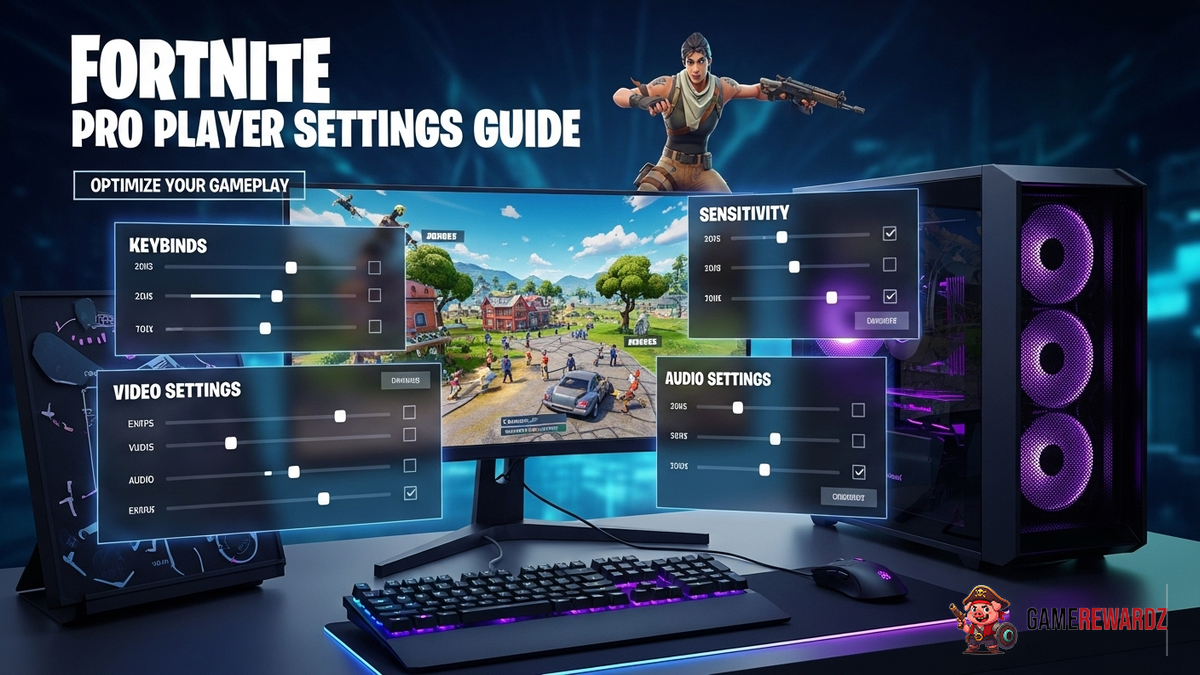
But where do you even begin? It can be overwhelming, I get it. There are a million options, sliders, and toggles staring you in the face. Don't panic! We're going to break it down, piece by piece. We're talking sensitivity, keybinds, graphics, and everything in between. The goal? To give you the tools to craft a personalized setup that feels like an extension of your own brain and reflexes. Ready to dive in?
Before we get too far, remember, this isn't about copying someone else's settings verbatim. It's about understanding why certain settings are popular and how they can be tweaked to suit your individual play style. Think of it as learning the rules so you can break them (in a good way, of course!). For example, some pros swear by super-low sensitivity for precise aiming, while others prefer higher sensitivity for faster building and editing. Which one are you? That's what we need to figure out.
Sensitivity Settings: Finding Your Sweet Spot
Okay, let's tackle the big one: sensitivity. This is where the magic happens, or where your aim goes to die a slow, painful death. I mean, it's all about finding that equilibrium. The frustrating thing about sensitivity is that it's so personal. What feels perfect to one person will feel like trying to ice skate in molasses to another. But the general idea? Lower sensitivity for precision, higher sensitivity for speed.
Here's what I recommend: start by experimenting with different DPI (dots per inch) settings on your mouse. Most gaming mice allow you to adjust this on the fly. Then, fine-tune your in-game sensitivity sliders. A good starting point is somewhere in the range of 5-8% for both X and Y axis. From there, jump into a Creative mode map and practice your aiming. Pay attention to how your crosshair feels. Is it too jerky? Too sluggish? Adjust accordingly. And seriously, practice! Muscle memory is key here. I've also learned strategies about other games from CrazyGames that you may find interesting. Actually, that's not quite right - practice is key but also take time to test different sensitivity levels. Then practice!
And don't forget about your targeting and scope sensitivity! These affect your sensitivity when you're aiming down sights with different weapons. It's crucial to dial these in so that your aim feels consistent across all weapons. A common mistake is to leave these at the default settings, which can lead to some seriously frustrating inconsistencies. Trust me, I've been there. I’ve messed around with different options in creative mode.
Keybinds: Building Like a Boss
Next up: keybinds. Oh, the joy of remapping your entire keyboard! Okay, maybe it's not joyful at first, but trust me, it's worth the effort. The goal here is to optimize your building and editing controls so that you can react as quickly as possible. Think about it: you want to be able to switch between building pieces, traps, and weapons without having to take your fingers off the movement keys. That's the holy grail.
Most pro players use a combination of mouse buttons and keyboard keys for their most frequently used actions. For example, many assign building pieces (wall, floor, stairs, roof) to their mouse buttons. This allows them to build structures incredibly quickly without having to fumble around on the keyboard. I mean, who wants to die because they couldn't find the right key in time?
Experiment with different keybinds until you find a setup that feels comfortable and intuitive. There's no right or wrong answer here. What works for one person might not work for another. But here's a tip: try to keep your keybinds consistent across different games. This will help you build muscle memory and avoid confusion when switching between games. This site shows how to configure for many popular games. It is extremely useful!
Graphics Settings: Balancing Beauty and Performance
Graphics settings: the age-old battle between eye candy and frames per second (FPS). Look, we all want our games to look beautiful, but not at the expense of performance. In Fortnite, every millisecond counts. A single frame drop can be the difference between winning and losing a fight. So, what's the sweet spot?
Well, it depends on your hardware. If you have a high-end gaming PC, you can probably crank up the graphics settings without sacrificing too much performance. But if you're running on a more modest machine, you'll need to make some compromises. The general rule of thumb is to prioritize FPS over visual fidelity. Here's why: higher FPS will give you a smoother, more responsive gameplay experience, which can improve your aim and reaction time. If you want to go even further, you can get better rewards in the game.
Here are a few settings to consider tweaking: view distance, shadows, anti-aliasing, and textures. View distance can have a significant impact on performance, so try turning it down to medium or low. Shadows can also be quite demanding, so consider disabling them altogether. Anti-aliasing can make the game look smoother, but it can also impact performance, so experiment with different settings to find the right balance. Textures are less demanding than the other settings, so you can usually leave them at medium or high without sacrificing too much performance.
Remember to monitor your FPS while you're tweaking these settings. You can use the in-game FPS counter or a third-party program like Fraps. The goal is to maintain a consistent FPS of at least 60, but ideally higher if your hardware can handle it.
Other Tweaks and Considerations
Beyond the big three (sensitivity, keybinds, and graphics), there are a few other settings that can impact your performance. For example, consider disabling motion blur and film grain. These effects can make the game look more cinematic, but they can also add input lag and reduce visibility.
Audio settings are also important. Make sure you have the correct audio device selected and that the volume is set to a comfortable level. You should also enable visualize sound effects, which will display visual cues for important sounds like footsteps and gunshots. This can be especially helpful if you're playing with headphones or have hearing difficulties.
And finally, don't underestimate the power of a good monitor. A high refresh rate monitor (144Hz or higher) can make a huge difference in your gameplay experience. It will make the game feel smoother and more responsive, which can improve your aim and reaction time. If you're serious about competitive gaming, a high refresh rate monitor is a must-have.
Fortnite Pro Player Settings Guide: FAQs
How do I know if my sensitivity is too high or too low?
Great question! The best way to determine if your sensitivity is right is to test it in-game. A sensitivity that's too high will feel jittery and uncontrollable, making it difficult to aim precisely. If it's too low, you'll struggle to track fast-moving targets and make quick turns. Find a balance where you can comfortably track targets, make quick adjustments, and still maintain accuracy. Try experimenting in Creative mode with various weapons and movement scenarios to dial it in!
Why do so many pros use low sensitivity?
Ah, the age-old question. Lower sensitivity generally allows for more precise aiming and control, particularly in long-range engagements. It's easier to make small, accurate adjustments when your mouse movements are translated into smaller in-game movements. That being said, it's not a universal rule! Some players prefer higher sensitivity for faster building and editing, or because it simply aligns better with their personal preferences and play style. It's all about finding what works best for you.
Is it really worth remapping my keybinds? It seems like a lot of work!
Okay, I hear you. Remapping keybinds can be a pain, no doubt. But trust me, the payoff is worth it. Having your most important actions within easy reach can dramatically improve your reaction time and efficiency in build fights. Think of it as an investment in your future Fortnite skills. Start with the most critical actions (building pieces, weapon slots) and gradually tweak the rest over time. You'll be surprised how quickly you adapt, and the benefits will be undeniable.
Will copying a pro's settings instantly make me better?
Here's the thing: while it can be helpful to look at pro player settings for inspiration, simply copying them won't magically transform you into a Fortnite god. Everyone has unique preferences and play styles. What works for Ninja or Tfue might not work for you. Instead, use their settings as a starting point and then tweak them to suit your own needs. The most important thing is to experiment and find what feels comfortable and effective for you. Also, settings aren't everything. Work on skills, strategy, and quick thinking to truly excel!







![Peggle [FLASH] Game](https://gamerewardz.com/thumbs/peggle-flash-game_2.webp)