
















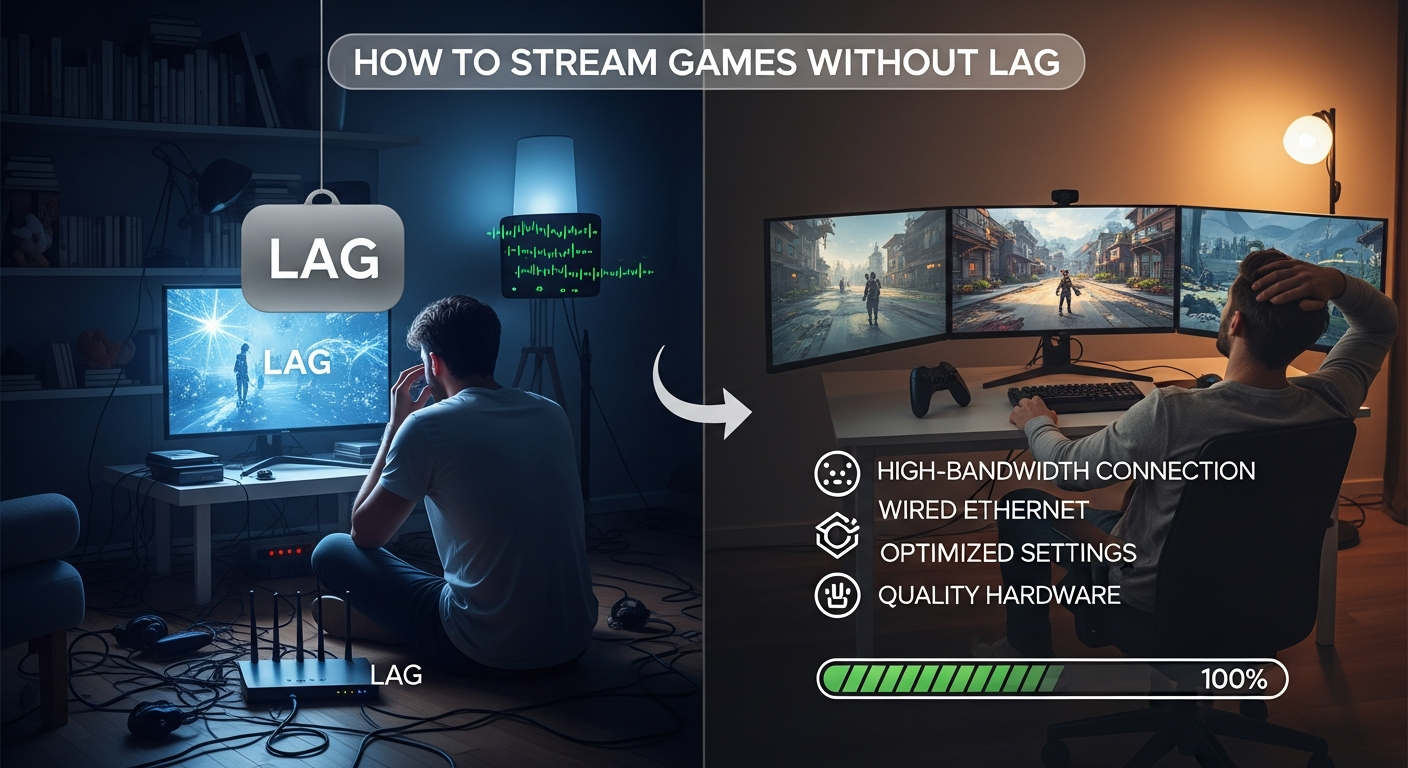
Okay, let's talk about lag. Ugh, lag. I've got to admit, there are few things more frustrating than gearing up for a killer game stream, getting all hyped, and then... buffer city. The stuttering, the dropped frames, the pixelated mess... it's enough to make you want to chuck your controller across the room. But fear not, fellow streamer! Achieving lag-free game streaming is totally possible, even if it sometimes feels like a dark art. This is not just theoretical advice; this comes from someone who's been there, tweaked that, and finally conquered the lag monster. Or, at least, mostly conquered it. It’s an ongoing battle, really. And remember, this is all just a starting point – your specific setup will always have its own quirks.
Understanding the Culprits Behind Laggy Streams
So, what’s actually going on when your stream turns into a digital slideshow? Well, think of your stream as a river. You’ve got water (your game data) flowing downstream (to your viewers). If the riverbed is too narrow (low bandwidth), or there's a dam (bottleneck in your system), the water backs up, causing... lag.
The main culprits are usually one or a combination of these:
- Internet Connection: This is the big one. Your upload speed is critical. You need enough bandwidth to send your game data, audio, and webcam feed without choking.
- Hardware Limitations: Your CPU and GPU are working overtime to encode and process the stream. If they're struggling, you'll see lag.
- Software Settings: Incorrect OBS (or whatever you are using!) settings can put unnecessary strain on your system.
- Network Congestion: Especially relevant if you're on a shared network. If your roommate is downloading the entire internet while you're trying to stream, you're going to have problems.
But, and this is important, it’s often a combination of factors. I initially thought my old CPU was the main problem. Turns out, I also needed to upgrade my internet package. Doh!
Optimizing Your Internet Connection for Smooth Game Streaming
Let’s dive into fixes, shall we? First up, internet. I hate to break it to you, but that bargain-basement internet plan probably isn't cutting it. You need sufficient upload speed, not just download. I keep coming back to this point because it's crucial. Minimum is 5 Mbps. Ideally, you're looking at 10 Mbps or higher for a smooth 720p or 1080p stream. Test your internet speed. There are tons of free online tools, like Speedtest by Ookla, that can help you check your bandwidth.
Other tips:
- Go Wired: Wi-Fi is convenient, but Ethernet is your friend. A direct connection eliminates wireless interference and provides a more stable connection.
- Prioritize Your Traffic: Some routers have Quality of Service (QoS) settings that allow you to prioritize gaming traffic. This can help ensure your stream gets the bandwidth it needs.
- Contact Your ISP: Explain that you're a streamer and need a reliable connection. They might have options specifically designed for gamers or content creators. It's worth a shot, right?
Think of it this way: Your internet connection is the foundation of your stream. If it's shaky, everything else will crumble. Speaking of crumbling, have you ever thought about what the best Scorestreak combos are? Take a look at this post here: Best Scorestreak Combos. It might even give you something new to stream!
Tuning Your Hardware for Optimal Performance
Now, let's talk about the guts of your operation – your hardware. Your CPU and GPU are the workhorses of your stream, encoding video and handling game processing simultaneously. If they're struggling, you'll see lag. No getting around that.
Consider these:
- CPU: A powerful CPU is essential for encoding. Aim for at least an Intel Core i5 or AMD Ryzen 5 processor. Higher is obviously better.
- GPU: A dedicated graphics card is crucial for handling game rendering. If you're using integrated graphics, you're likely to experience significant performance issues. Something like an NVIDIA GeForce GTX 1660 or AMD Radeon RX 580 is a good starting point.
- RAM: Make sure you have enough RAM (at least 8GB, ideally 16GB or more). This allows your system to handle multiple tasks simultaneously without slowing down.
Also:
- Close Unnecessary Programs: Before you start streaming, close any programs that are using CPU or memory in the background. That means Chrome with 80 tabs open!
- Update Your Drivers: Make sure your graphics drivers are up to date. This can often improve performance and stability.
- Monitor Your Temps: Overheating can cause performance throttling. Make sure your CPU and GPU are properly cooled.
Let me try to explain this more clearly: Your hardware is like the engine of your car. A weak engine will struggle to climb hills (encode video). An upgraded engine will make the journey much smoother. I remember when I upgraded my CPU. The difference was night and day. It was like going from a sputtering moped to a Ferrari (well, maybe a slightly used Honda, but still!). Another important aspect of gaming is sensitivity and that's why I would highly recommend you to have a look at the sensitivity settings in this Sensitivity Codes article. You might find it useful.
Software Settings: Mastering OBS (or Your Streaming Platform of Choice)
Okay, you've got a decent internet connection and capable hardware. Now it's time to dive into the software settings. OBS Studio is the most popular choice, but the principles apply to other streaming platforms as well.
- Resolution: Start with a lower resolution like 720p (1280x720) and see how your system performs. You can always increase it later if you have headroom.
- Frame Rate: 30fps is often sufficient for streaming, especially if you're playing fast-paced games. 60fps requires more processing power.
- Bitrate: This determines the amount of data used per second. A higher bitrate results in better quality but requires more bandwidth. Start with around 2500-3500 kbps for 720p/30fps and adjust accordingly.
- Encoder: The encoder converts your video into a format that can be streamed. x264 uses your CPU, while hardware encoders like NVENC (NVIDIA) and AMF (AMD) use your GPU. Experiment to see which works best for your system.
And some extra tips:
- Test Your Settings: Before you go live, run a test stream to see how your system performs. Monitor your CPU and GPU usage to identify any bottlenecks.
- Use a Streaming Overlay: Overlays can add visual appeal to your stream, but they can also impact performance. Keep them simple and optimized.
- Update OBS: Make sure you're using the latest version of OBS. This often includes performance improvements and bug fixes.
Honestly, OBS settings can be a rabbit hole. There are so many options! But the key is to experiment and find what works best for your setup. Don’t be afraid to tweak things until you get the results you want.
FAQ: Your Burning Questions About Lag-Free Game Streaming, Answered!
How do I know if my internet speed is good enough for streaming games?
That's a great question! Start by testing your upload speed using a tool like Speedtest. As a general rule, you'll want at least 5 Mbps upload for a decent 720p stream at 30fps. For 1080p and higher frame rates, you'll need considerably more – 10 Mbps or higher. But remember, these are just guidelines. Run test streams and monitor your performance to see what works best for your specific setup and game.
Why is my stream lagging even though my internet speed is good?
Ah, the mystery of the lag! Even with a solid internet connection, other factors can cause problems. Your hardware might be struggling to encode the video. Check your CPU and GPU usage during streams. Also, software conflicts can be a real problem. Try closing unnecessary applications and updating your drivers. You might be wondering about the best artifacts in Genshin Impact, which is something that might affect the way your stream runs? Check out this article here: Genshin Impact Ultimate Artifact Guide
What's the best encoder to use for streaming, x264 or NVENC?
This depends on your hardware. x264 uses your CPU, while NVENC (if you have an NVIDIA GPU) uses your GPU's dedicated encoding hardware. If you have a powerful CPU but a weaker GPU, x264 might be a better choice. Conversely, if you have a strong NVIDIA GPU, NVENC will likely provide better performance. The best approach is to experiment with both and see which yields smoother results.
Is it better to stream at 720p60 or 1080p30?
Again, this is a balancing act. 1080p30 offers a higher resolution but a lower frame rate, while 720p60 offers a lower resolution but a smoother frame rate. For fast-paced games, the higher frame rate of 720p60 might be preferable. For slower-paced games or visually stunning content, 1080p30 could be a better choice. Consider your target audience and the type of content you're streaming.
See? It's a constant push and pull. Stream games can be challenging!
Final Thoughts: The Quest for Lag-Free Game Streaming is a Marathon, Not a Sprint
Look, getting your stream to run perfectly takes time and effort. You have to be willing to experiment, tweak settings, and troubleshoot problems. There's no magic bullet. But the reward – a smooth, engaging stream that your viewers will love – is worth the effort. And who knows, maybe I’ll see you out there!










![Peggle [FLASH] Game](https://gamerewardz.com/thumbs/peggle-flash-game_2.webp)