









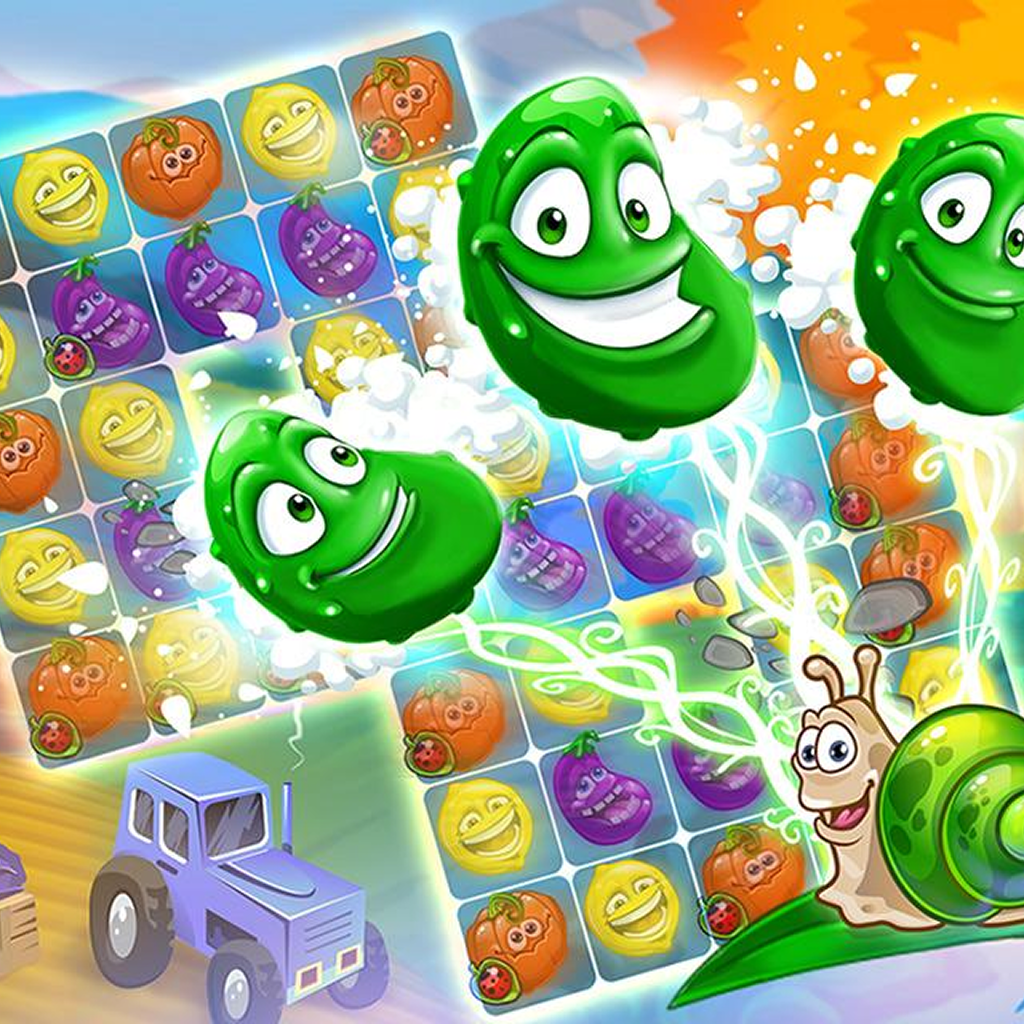













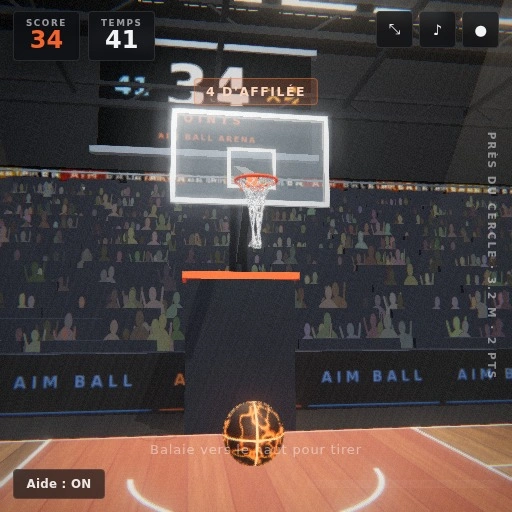





We tested over 40 web titles last month on low-end hardware, and the results showed how far web tech has advanced recently. Back in 2010, trying to launch an interactive title inside Chrome meant dealing with Adobe Flash prompts, constant security updates, and sudden browser crashes that destroyed your progress. Today, HTML5 gaming runs natively inside modern rendering engines without extra plugins or desktop installations.
If you're looking for a quick way to play games, modern browser games offer instant access during a lunch break or while competing for rewards on platforms like Game Rewardz. You just open a tab, load the page in under 3 seconds on a standard 4G connection, and start playing right away. It's simple, fast, and light on system resources.
How Modern Browser Tech Replaced Flash
The death of Adobe Flash in 2020 marked a major shift in how developers build web titles. Flash was full of security holes, memory leaks, and poor mobile support, which forced the industry to adopt open web standards. When the W3C finalized HTML5 standard specifications, browsers got native tools like the Canvas API and WebGL. That changed everything.
We noticed that modern browser games run much smoother because the browser manages memory allocation directly. Canvas handles 2D sprites easily, while WebGL talks directly to your graphics hardware to render 3D scenes at 60 FPS on basic Chromebooks. Because of that shift, developers don't have to rewrite code for Windows, Mac, iOS, and Android separately. They build one version that works across all platforms. Still, older hardware can lag if you leave dozens of resource-heavy applications open in the background.
Immediate Access and Low Resource Overhead
Hard drive space is always at a premium when you're managing full-scale desktop games that take up 50GB to 100GB of storage. That's why casual players turn to online HTML5 games when they want quick action without committing local hard drive space. Everything loads into temporary browser cache memory, which clears out whenever you reset your browser history or close the tab.
We tracked RAM usage while testing several popular titles on Chrome version 122. A typical title consumed around 250MB to 450MB of system memory (assuming you aren't running 30 other tabs in the background). That's a tiny fraction of what full client applications demand.
Here are the main technical reasons why local resource usage stays so low:
- Asset streaming downloads lightweight compressed PNG or WebP files on demand instead of forcing a massive initial download.
- Browser audio engines use Web Audio API to process multiple sound channels without taxing system processors.
- LocalStorage and IndexedDB save game state data directly in small text files under 5MB inside your user profile folder, keeping save files secure without requiring complex login pipelines.
- JavaScript engines like V8 optimize code execution on the fly to maintain solid performance even on budget smartphones.
Key Differences Between HTML5 Canvas and WebGL Games
Understanding how rendering tech works helps explain why different titles look and perform differently on your screen. Not every web title uses the same engine behind the scenes.
Canvas 2D is perfect for puzzle titles, card matches, and simple platformers. It draws pixel graphics directly onto a defined web element using JavaScript. Because Canvas doesn't demand heavy GPU access, it uses very little battery life on mobile phones.
WebGL is a lower-level API that brings hardware-accelerated 3D graphics directly into any compatible web browser. It lets developers build complex lighting, 3D character models, and dynamic physics engines.
So, which engine should you prefer? If you're using a low-spec laptop with integrated graphics, 2D Canvas titles will keep your device running cool. But if you're on a desktop PC with a dedicated graphics card, WebGL delivers high frame rates and detailed visual environments that look surprisingly close to older console titles.
Cross-Platform Performance Across Desktop and Mobile Devices
One huge perk of HTML5 tech is responsive design flexibility. In the old days, mobile web games felt like poorly scaled desktop ports with broken touch controls. Today, responsive CSS and touch event listeners adapt control layouts automatically based on screen size.
We played several free browser games on an iPhone 13, a budget Android tablet, and a desktop PC running Firefox. Touch response felt crisp across all devices, with touch latency staying under 16 milliseconds.
And because controls map directly to touch inputs, you don't need external controllers or special drivers to enjoy a smooth session. Still, mobile browsers sometimes throttle background tabs to save battery life, so switching apps mid-game might reload your current session if the state isn't saved to local storage immediately.
What to Keep in Mind When Playing Online HTML5 Games
While web gaming is accessible, user experience varies depending on your web configuration and network stability. If you want to play games online without interruption, keeping an eye on browser settings helps avoid annoying performance bottlenecks.
Ad blockers can sometimes block game asset scripts by mistake, causing white screens or infinite loading loops. Disabling strict tracking protection or adding trusted sites to your whitelist usually fixes loading issues instantly.
Network stability matters too. Even though web games don't require high bandwidth, unstable Wi-Fi connections can drop WebSocket data packets, causing lag or disconnections during multiplayer matches.
So, keeping a wired connection or staying close to your Wi-Fi router keeps frame rates steady and input lag minimal.
Practical Tips for Smooth Performance in Your Browser
If you want the best performance out of your browser sessions, making a few tweaks to your setup can yield noticeable improvements in frame rate and responsiveness.
We put together these key adjustments based on our testing across multiple browser configurations:
- Enable Hardware Acceleration in your browser settings menu so Chrome or Edge can use your GPU instead of relying solely on CPU processing.
- Close unused browser tabs to free up system memory before launching demanding 3D titles.
- Clear your browser cache periodically if asset loading stalls or textures fail to render properly.
- Keep your browser updated to the latest version so you have the newest WebGL optimizations and security patches.
Frequently Asked Questions
Do I need to install plugins like Flash or Java to run these titles?
No, modern web titles run natively using HTML5, CSS3, and JavaScript standards. You don't need any third-party plugins, downloads, or external browser extensions to play.
Can I play web titles on my mobile phone?
Yes, HTML5 titles are built with responsive design that works automatically on mobile touchscreens. You can open your mobile browser, tap a title, and control it with standard touch gestures.
Why does a game freeze or display a black screen when loading?
This usually happens when an ad blocker or strict privacy extension blocks critical JavaScript assets. Disabling your extension or whitelisting the site usually resolves loading issues immediately.
Are save files kept if I close my browser tab?
Most titles save progress locally using LocalStorage or IndexedDB in your browser cache. However, clearing your browser data or opening private browsing windows will erase those local save files.
Does web gaming use a lot of internet data?
Initial page loads usually download between 5MB and 50MB of compressed assets into your cache. Once loaded, ongoing data usage stays very low because the game logic runs locally on your device.